1
Import the song
Paste a supported Suno URL or upload the audio file. Play the imported track before storyboarding so you know the correct version and full duration arrived, then add or correct lyrics for lyric-aware scenes.
A finished Suno track already contains more direction than a blank video prompt: lyrics, vocal phrasing, section changes, energy, and an exact duration. Import a supported Suno link or the audio file you are authorized to use, and build the video around those signals — storyboard first, animation second, final MP4 last.
The workflow preserves what your song already decided — timing, lyrics, structure — and lets you correct the visual direction before committing credits to a full render.
Paste a supported Suno URL or upload the audio file. Play the imported track before storyboarding so you know the correct version and full duration arrived, then add or correct lyrics for lyric-aware scenes.
Name the world, performer, and visual progression. The song supplies the timing; your brief supplies the creative idea. Review the scene plan against the lyric timing before animating anything.
Approve the strongest frames, generate scene clips, and regenerate only the shots that miss. Final Video Production places clips in song order, combines the source audio, and prepares the downloadable MP4.
Every example links to a public AIMusicVideo release. No stock demos and no invented production counts.
 Non finisce mai – MP3vonburg30 · Watch the finished video
 Your Light Found Me (test copy)jason · Watch the finished videoNon finisce mai – MP3 (Flux test copy)jason · Watch the finished video
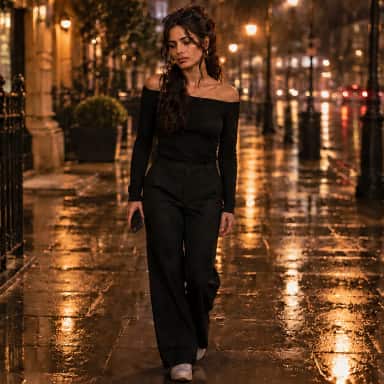 BAKGUN_Yalan_Hepsi_Yalan_Yayin_Master (Flux test copy)jason · Watch the finished video
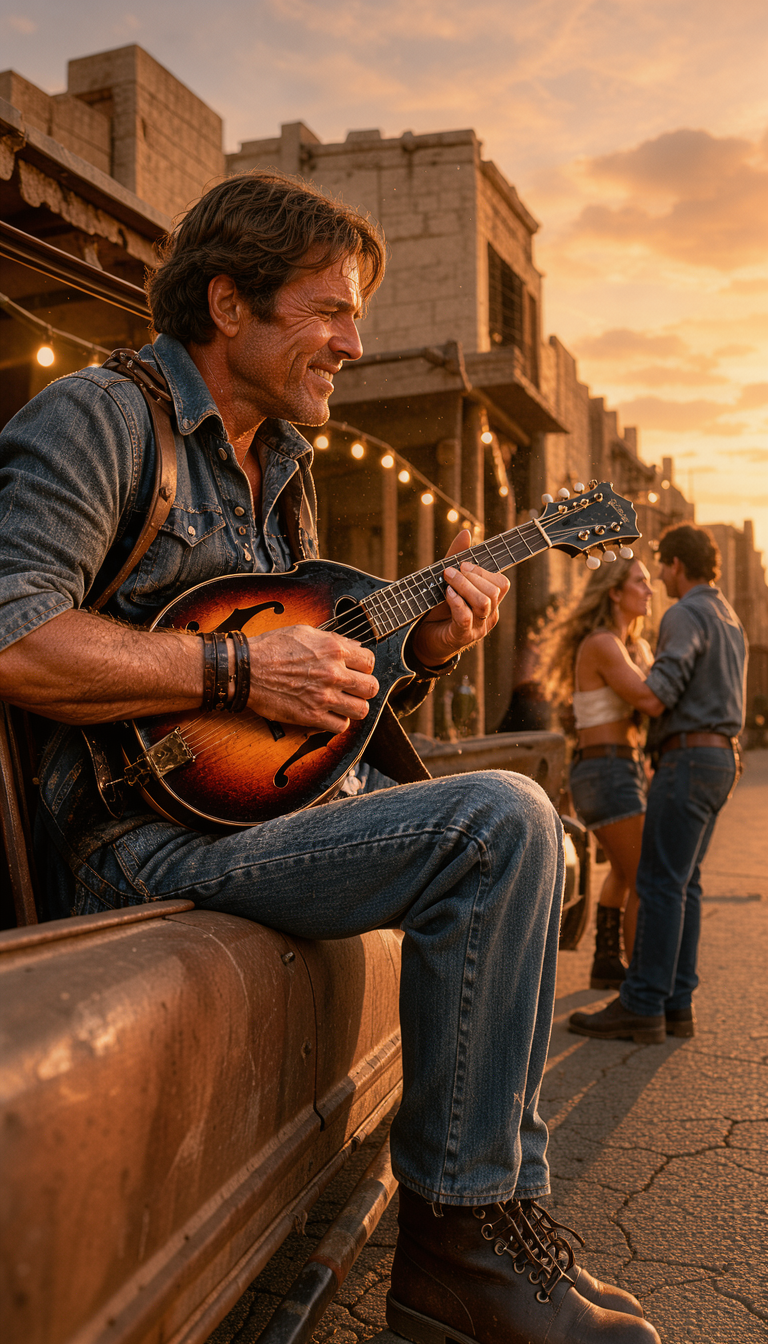 Come On Overantonio42 · Watch the finished video
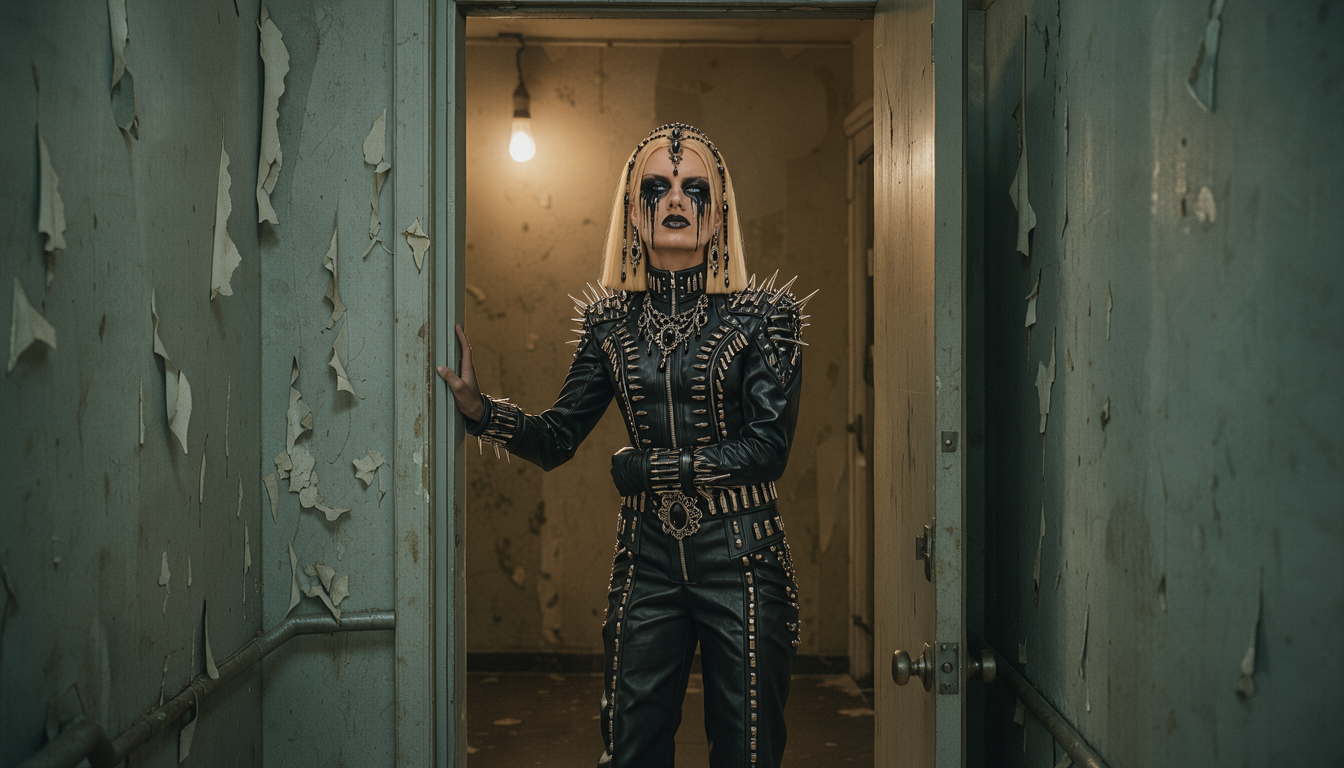 Ghost Of Sorrowjoerighttt73 · Watch the finished video
Before importing anything, confirm that your Suno account, plan, collaborators, samples, and lyrics give you the rights needed for the intended release. A video tool cannot grant music rights that you do not already have. Keep the original song title, artist credit, lyrics, and source information available — they make the project easier to identify and help you review the final public page.
Check the opening and ending for accidental silence, confirm the displayed duration matches the source, and choose whether the song remains private or becomes a public release.
Add or correct lyrics when the song needs lyric-aware scenes. Timed lyrics and song structure decide what each scene means, when it begins, and how it leads into the next section.
Look for repeated compositions, literal illustrations that feel awkward, location jumps without a reason, and scenes where the performer identity is unclear. Fix them in the storyboard frames, not in the final render.
Common problems — a face drifting between scenes, motion that misses the lyric, a chorus that feels smaller than the verse — are fixed at the smallest level: one scene direction, one storyboard image, or one clip.
A useful direction names the world, performer, and visual progression without rewriting every shot. Your Suno track supplies the timing and structure; your brief supplies the non-negotiable creative idea.
“A lone neon-armored singer crosses a rain-soaked city at night. Keep the same face and wardrobe. Verses feel intimate and observed; every chorus opens into a larger rooftop performance.”
Yes. Import a supported Suno link or upload the audio file you have the right to use, then move the song through lyric timing, storyboard direction, scene animation, and final MP4 assembly.
Yes. Confirm that your Suno account, plan, collaborators, samples, and lyrics give you the rights needed for the intended release. A video tool cannot grant music rights you do not already have.
Yes. Timed lyrics and song structure guide the storyboard, so scenes can follow verses, open up on choruses, and change with the song's sections instead of looping generic footage.
Revise the scene direction, replace one storyboard image, or regenerate one clip instead of discarding the project. Review the storyboard and a small image pass before animating everything.
Yes. Create a separate 9:16 vertical production or a 16:9 horizontal release rather than reframing a finished export and losing the performer or titles.
Free signup includes one complete storyboard with every first-pass scene image generated. Audio generation uses available credits. Scene animation and final MP4 processing require a membership and production credits. See current pricing.
You retain ownership of your uploaded content and generated outputs, subject to rights held by music services, artists, labels, performers, and model providers. You remain responsible for clearing the music, lyrics, likenesses, and other source material you use. Read the full terms.
Import the song, review its timing, and direct the storyboard before generating the complete video.